
Are you looking to adjust your language settings? Dive into this informative video tutorial that will expertly walk you through the process, step by step. You'll learn how to navigate the settings menu, select your preferred language, and customize your experience for greater comfort and ease. Don't miss out on this opportunity to enhance your understanding and make the most of your device!
You can get the PoEdit from here https://poedit.net/
After you made your changes to the file “messages.po” and save it you need to upload both files
NOTE:
After editing/adding your language, make sure there is no console error in your browser. For example, in Google Chrome, you can press F12 and click the console Tab
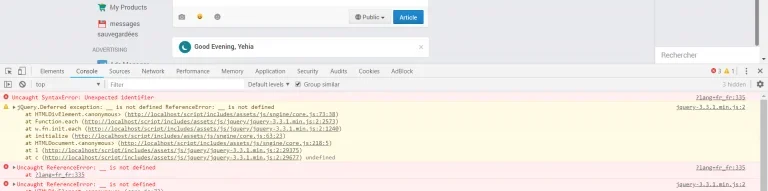
Why?
There are some string Sngine use in JavaScript you can check them all from the following template file:
content/themes/default/templates/_js_files.tpl
You must make sure you didn’t added translated text with special characters like single or double quotes ‘ or “
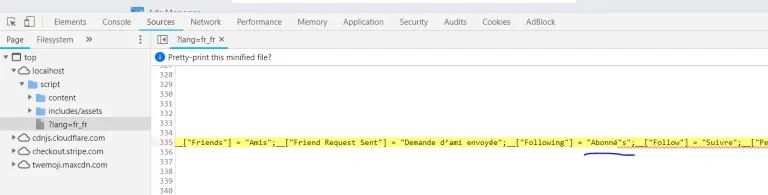
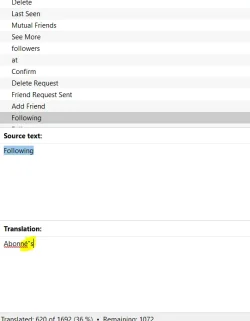
You need to escape special characters by using “\” the slash. Like this
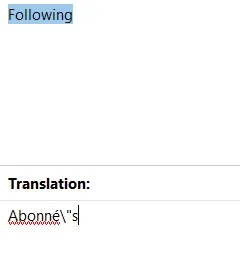
Save message.po to get new message.mo files and upload new files
You can get the PoEdit from here https://poedit.net/
After you made your changes to the file “messages.po” and save it you need to upload both files
- messages.po
- messages.mo
NOTE:
After editing/adding your language, make sure there is no console error in your browser. For example, in Google Chrome, you can press F12 and click the console Tab
Why?
There are some string Sngine use in JavaScript you can check them all from the following template file:
content/themes/default/templates/_js_files.tpl
You must make sure you didn’t added translated text with special characters like single or double quotes ‘ or “
You need to escape special characters by using “\” the slash. Like this
Save message.po to get new message.mo files and upload new files